
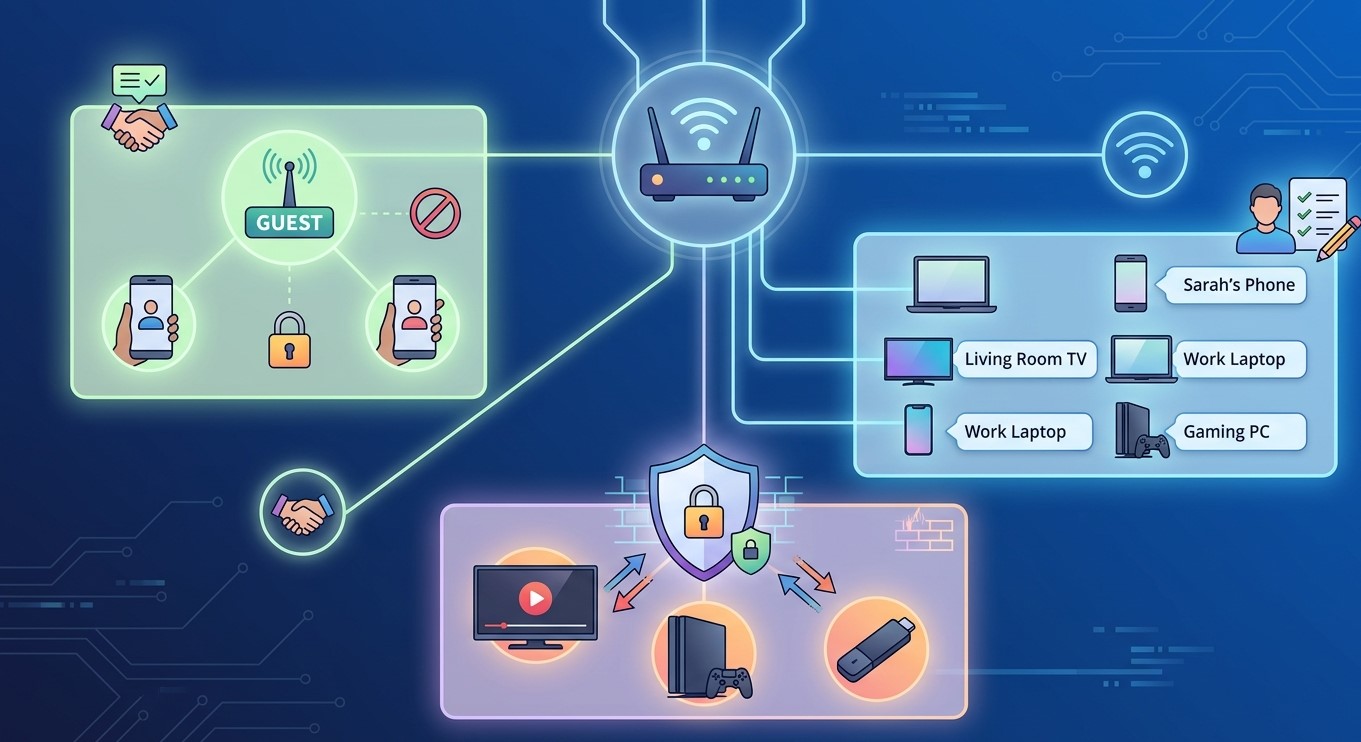
A home network tends to grow without a plan. A new phone here, a smart bulb there, a guest’s laptop, a second TV, and soon you have dozens of devices and no idea which is which. A little organization makes troubleshooting faster, keeps your streaming smoother, and protects your devices and your account. In this guide, we’ll walk through a practical, beginner-friendly setup that works well for households using IPTV India on an Indian IPTV Box.
Table of Contents
- Why Organize Your Network at All?
- Start With an Inventory
- Name Your Devices Clearly
- Set Up Guest Wi-Fi
- Separate Smart Home Devices
- Protect Your Streaming Devices
- Secure Your Router
- Keep Streaming Running Smoothly
- Document and Maintain
- A Simple Home Network Plan
- Common Mistakes to Avoid
- FAQs
Why Organize Your Network at All?
A tidy network gives you several benefits:
- Easier troubleshooting. When your router lists “Android_8f3a” and “device-12,” you can’t tell which is the problem. Clear names let you spot your box in seconds
- Better security. Guests and cheap smart gadgets shouldn’t share a network with your computers and accounts
- More reliable streaming. Knowing what’s connected helps you find the device hogging bandwidth
- Simpler management. Passwords, access, and permissions are easier to control when the network has a structure
- Fewer surprises. You’ll notice an unfamiliar device right away
You don’t need professional equipment. Most of this is possible with an ordinary home router.
Start With an Inventory
Open your router’s connected devices list, usually through its app or admin page. For each entry, figure out what it is:
- Phones, tablets, and laptops
- TVs and streaming devices, including your Indian IPTV Box
- Smart speakers and displays
- Smart home devices, like plugs, bulbs, cameras, and thermostats
- Game consoles
- Printers and other peripherals
- Anything unknown
Identify unknown devices by checking the hardware (MAC) address against labels on your gear, turning devices off one at a time to see which disappears, or looking at the manufacturer name shown in the list. If something remains unidentified, treat it with suspicion. Change your Wi-Fi password and see whether it reconnects.
Make a simple list or spreadsheet with the device name, location, and who uses it.
Name Your Devices Clearly
Good names turn a confusing list into a readable one:
- Rename devices in your router’s settings where it allows, and on the devices themselves where possible
- Use a consistent pattern, such as “LivingRoom-IPTVBox,” “Bedroom-TV,” or “Dad-Phone”
- Keep names short, plain, and free of personal details, since device names can be visible to others on the network and sometimes beyond it. Avoid full names, addresses, or anything sensitive
- Include the room or purpose, so you know where to look when something misbehaves
- Avoid special characters, which some devices handle poorly
- Update names when things change, such as when a device moves rooms
While you’re at it, give your Wi-Fi network a name that doesn’t reveal your family name or address, and avoid using the default name that identifies your router model.
Set Up Guest Wi-Fi
A guest network is a separate Wi-Fi network for visitors. Most modern routers offer one.
Why use it:
- Visitors’ devices stay away from your personal devices, such as computers, file storage, and your streaming box
- A compromised or infected guest device can’t easily reach the rest of your network
- You can change the guest password without disrupting your own devices
- You can limit what guests can do, depending on your router’s options
How to set it up (general steps; menus vary by router):
- Open your router’s app or admin page
- Find “Guest Network” or similar in the Wi-Fi settings
- Turn it on and give it a clear name, such as “Home-Guest”
- Set a strong, different password with WPA2 or WPA3 security. Avoid open networks without a password
- Enable device isolation (sometimes “AP isolation” or “client isolation”), if offered, so guest devices can’t see each other or your main network
- Set bandwidth limits or a time limit, if your router supports them, so a guest’s downloads don’t swamp your stream
- Test it by connecting a phone to the guest network and confirming it can reach the internet but not your main devices
A note on streaming devices: Because guest networks usually isolate devices, features like casting from a phone to your TV may not work across them. That’s usually a feature, not a bug. If a visitor wants to cast to your TV, you may need to put them on the main network temporarily, or accept that casting won’t work from the guest network.
Separate Smart Home Devices
Many smart home gadgets have weak security and rarely get updates. Keeping them away from your computers and accounts is a smart precaution.
- Use a second network (sometimes a “IoT” or “smart home” network) if your router supports multiple networks or VLANs. Some routers let you use the guest network for this purpose
- Check that your devices work on the separated network. Some smart devices need to be on the same network as your phone to be set up or controlled
- Keep the setup simple. If it becomes a hassle to manage, it won’t last
- Update the firmware on smart devices regularly, and replace those that no longer receive updates
Your Indian IPTV Box can usually stay on your main network, especially if you want casting and remote apps to work.
Protect Your Streaming Devices
Your streaming box holds your subscription login, so a few habits go a long way:
- Keep firmware and apps updated. Updates often include security fixes
- Install apps only from official sources or those your provider documents. Avoid unknown add-ons and modified apps
- Use strong, unique passwords for your IPTV account, and don’t reuse them elsewhere
- Keep your login details and playlist link private. Don’t post them in chats, forums, or screenshots
- Turn off features you don’t use, such as remote access or developer options, if the device allows
- Review installed apps occasionally, and remove anything you don’t recognize
- Use parental controls and PINs where children use the device
- Log out and reset before selling or giving away a device
- Consider a reserved IP address (a DHCP reservation) for your box in your router settings. It keeps the address stable, which helps with identifying the device and any rules you set
- Be careful with port forwarding and remote access. IPTV viewing doesn’t normally require opening ports to the internet, and unnecessary open ports increase risk. Leave them closed unless you know exactly why you need them
Secure Your Router
Your router is the gatekeeper for everything:
- Change the default admin password. Many routers ship with a well-known default, and anyone on your network could use it
- Use WPA3 if all your devices support it, or WPA2 (AES) otherwise. Avoid WEP and old WPA
- Use a long, unique Wi-Fi password and share it only with people you trust
- Update the router firmware, and turn on automatic updates if available
- Disable WPS if you don’t use it, since it can be a weak point
- Turn off remote administration unless you need it
- Be cautious with UPnP. It lets devices open ports automatically, which is convenient but can create risk. Disable it if you don’t need it
- Check the admin page for unknown devices periodically
- Consider a separate admin password from your Wi-Fi password
- Enable the router’s firewall, and review security features, such as filtering, carefully, since overly aggressive filtering can block apps. Our guide on IPTV working on mobile data but not Wi-Fi covers how filtering can interfere
Keep Streaming Running Smoothly
Organization also helps performance:
- Wire what you can. Connect your Indian IPTV Box and other stationary devices by Ethernet to free up Wi-Fi capacity
- Use the 5 GHz band for streaming devices near the router, and keep 2.4 GHz for far-away or simple devices
- Use QoS or device prioritization, if your router has it, to give your streaming box priority during busy times
- Schedule updates and backups for off-peak hours
- Place the router well: central, elevated, and away from walls and appliances
- Consider a mesh system for larger homes, ideally with wired backhaul
- Check for bandwidth hogs in your device list when streaming slows down
- Restart your equipment occasionally, in the right order: modem first, then router
- Monitor your speed, using the approach in our speed test guide, and keep notes
Document and Maintain
A network you can’t remember how to fix isn’t organized. Keep a simple record:
- Router login details, stored securely, such as in a password manager
- Wi-Fi names and passwords
- Your device list with names and locations
- Your internet provider’s account details and support number
- Your IPTV account details, stored securely
- Any custom settings you’ve made, such as reserved addresses or DNS changes
- A reset plan, noting what you’d need to re-enter if you ever reset the router
Set a reminder to review everything every few months:
- Remove devices you no longer use
- Check for firmware updates
- Change the guest password if it’s been shared widely
- Look for unfamiliar devices
- Confirm your names are still accurate
A Simple Home Network Plan
Here’s a straightforward layout for a typical household:
| Network | Who/What Connects | Notes |
|---|---|---|
| Main Wi-Fi | Family phones, laptops, TVs, Indian IPTV Box | Strong password, WPA2/WPA3, 5 GHz where possible |
| Guest Wi-Fi | Visitors | Separate password, device isolation, optional limits |
| Smart home/IoT (if available) | Plugs, bulbs, cameras, appliances | Isolated from main devices where practical |
| Ethernet | IPTV box, game console, desktop | Most stable for streaming |
Add clear device names, a documented list, and a quarterly check, and you have a setup that’s easier to run and harder to break.
Common Mistakes to Avoid
- Leaving the router’s default admin password
- Using the same password everywhere
- Sharing your main Wi-Fi password with everyone who visits
- Putting everything on one flat network, including cheap, unmaintained gadgets
- Opening ports or enabling remote access without a clear need
- Ignoring firmware updates
- Leaving unfamiliar devices unexamined
- Using personal information in device names or network names
- Over-complicating the setup, then abandoning it
- Forgetting to document what you did
- Applying aggressive filtering without testing, which can block your apps
FAQs
1. Do I really need a guest network?
It’s a good idea. It keeps visitors’ devices away from your computers and streaming devices, and lets you change the guest password without affecting your own.
2. Should my Indian IPTV Box be on the guest network?
Usually not. Keep it on your main network so casting and apps work normally. The guest network is meant for visitors.
3. Why can’t my guest cast to my TV?
Guest networks often isolate devices, which blocks casting. Put the guest on the main network temporarily if you trust them, or use another method such as a cable.
4. Is renaming devices worth the effort?
Yes. Clear names make it much easier to spot problems, unknown devices, and bandwidth hogs. It only takes a few minutes.
5. Do I need to open ports for IPTV?
Normally no. Standard IPTV viewing doesn’t require opening ports to the internet. Avoid port forwarding unless you have a specific, understood reason.
A Tidy Network Makes Better Streaming
A little organization protects your devices, simplifies troubleshooting, and keeps your connection running smoothly. Pair a dependable IPTV India subscription with a well-managed Indian IPTV Box on a network you understand. Explore our IPTV plans today and enjoy streaming on a setup you can trust.
 Marty Turner
  bnbindia